Welcome to my comprehensive guide on how to install and set up Visual Studio Code (VS Code) for C programming. Whether you're a beginner looking to get started with C or an experienced programmer needing a refresher, this step-by-step guide will walk you through the entire process.
Steps:
- VS Code Installation
- Online Download
- Checking the Installation
VS Code Installation
Step 1: Download VS Code if not installed
Download VS Code
Step 2: Open VS Code and go to the Extensions section
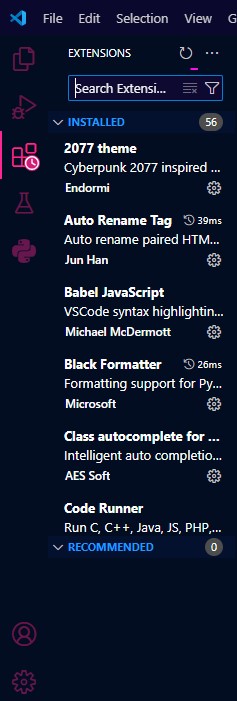
Step 3: Search for "C/C++" and install the first extension
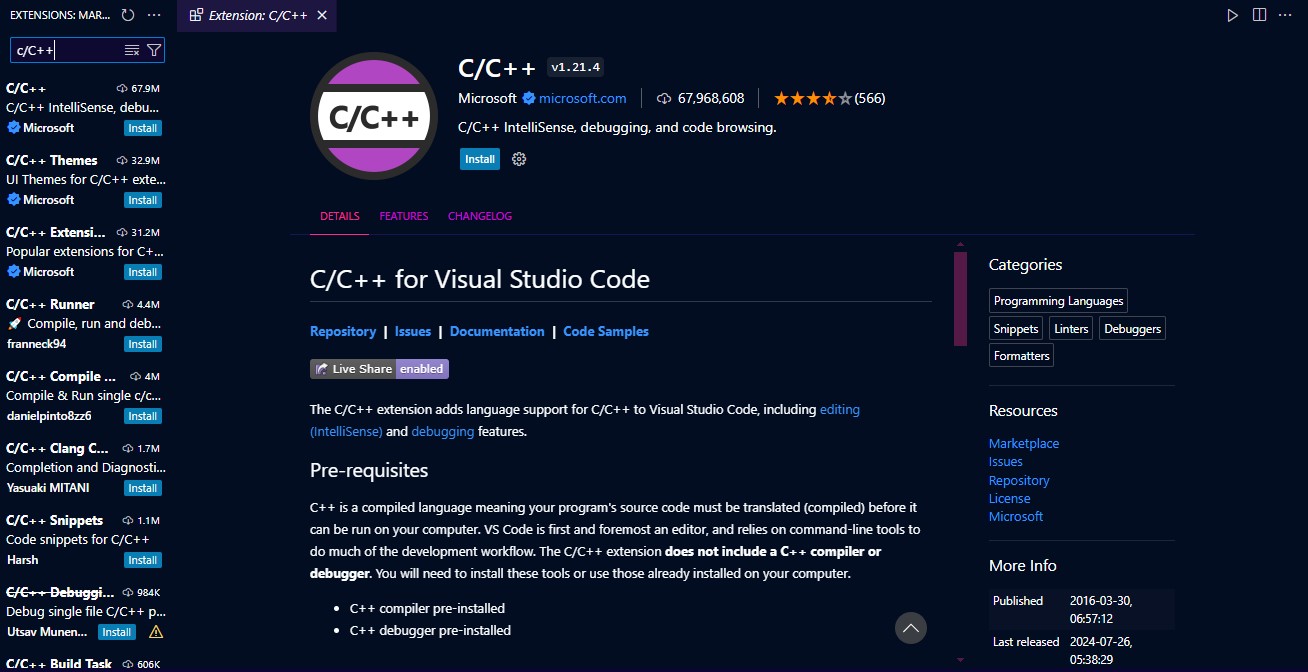
Step 4: Now your VS Code is ready for C language
Online Downloads
Step 1: Go to the given link and install MSYS2
Download MSYS2
Step 2: Now open the installed MSYS2 UCRT64 terminal
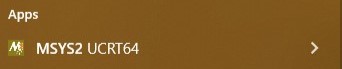
Step 3: Paste the following command and let it install
pacman -S mingw-w64-ucrt-x86_64-gcc
Step 4: Paste another command in the same place and let it also install
pacman -S --needed base-devel mingw-w64-ucrt-x86_64-toolchain
Step 5: Now everything is set up
Checking Installation
Step 1: Go to cmd and paste the following command
gcc --version
This will show the version of GCC if MSYS2 is installed successfully
Step 2: Now go to VS Code and create a new file hello.c to check
Write Hello World code
#include<stdio.h>
int main(){
    printf("Hello World!");
    return 0;
}