
AshuraMajestic
Sep 16, 2024

10 min
GitHub badges are a great way to showcase your achievements and contributions to the community. In this guide, we'll cover how to earn the various badges.


Click on your profile icon in the upper-right corner of the GitHub desktop interface.

Select Your organizations.
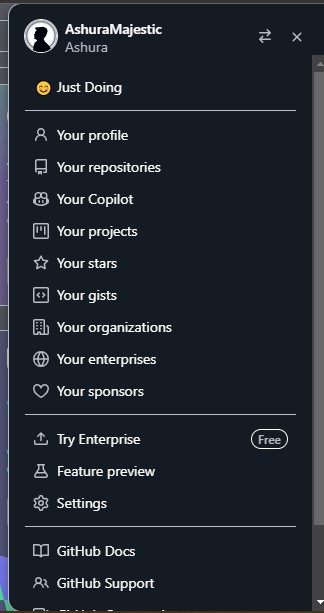
Click on New organization.
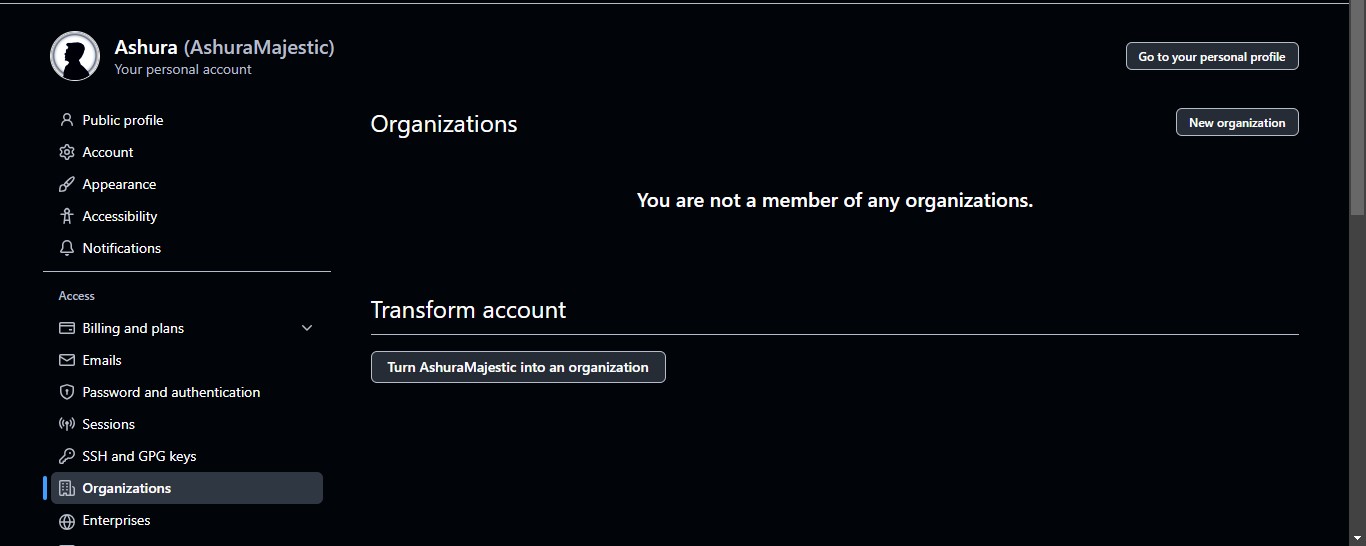
Choose the Free Plan and proceed with the setup.
Complete the setup by naming your organization and choosing your personal account, among other options.
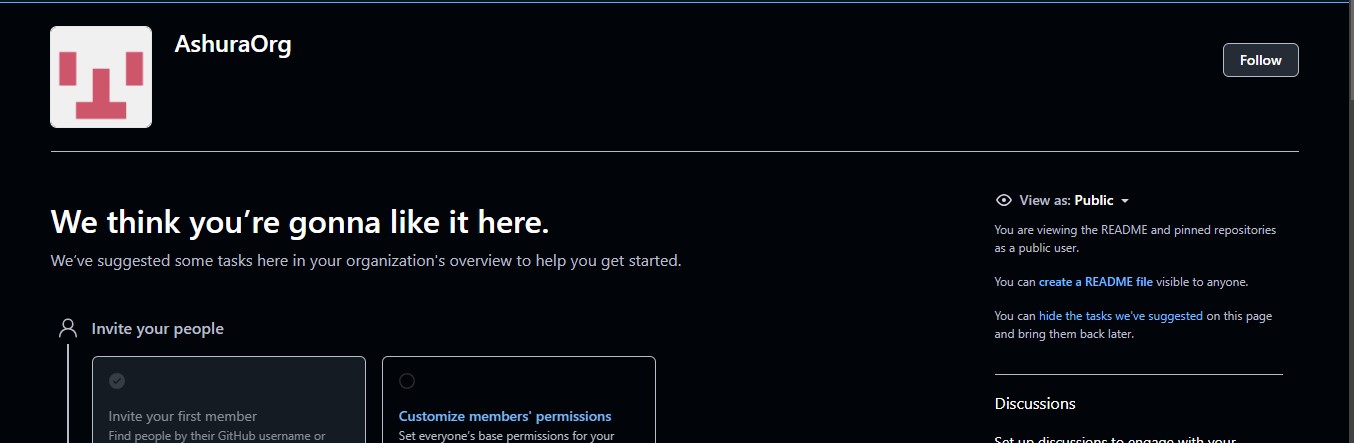
Create a new repository under your personal GitHub account (not the organization).
Fork the repository from the organization you just created.
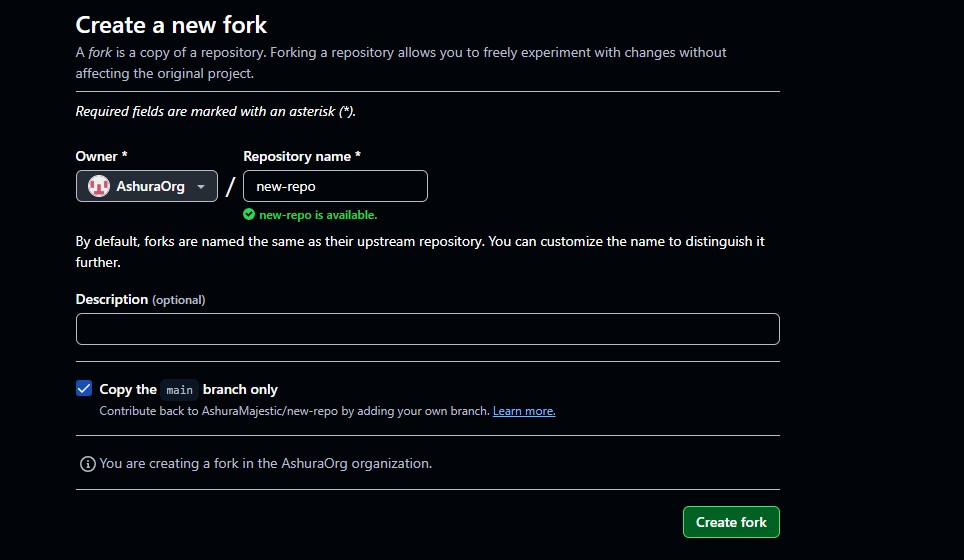
Add a new file to the repository in your organization (the forked repo), Any file Like main.js, hello.js, Bye.py, etc, and commit it.
Open a Pull Request from the forked repo.
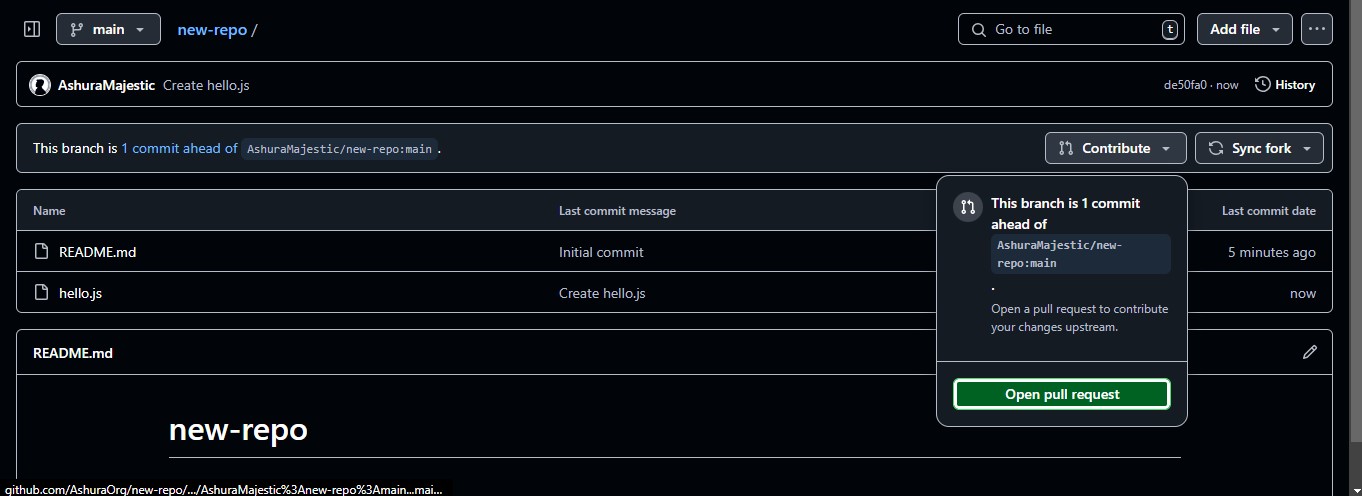
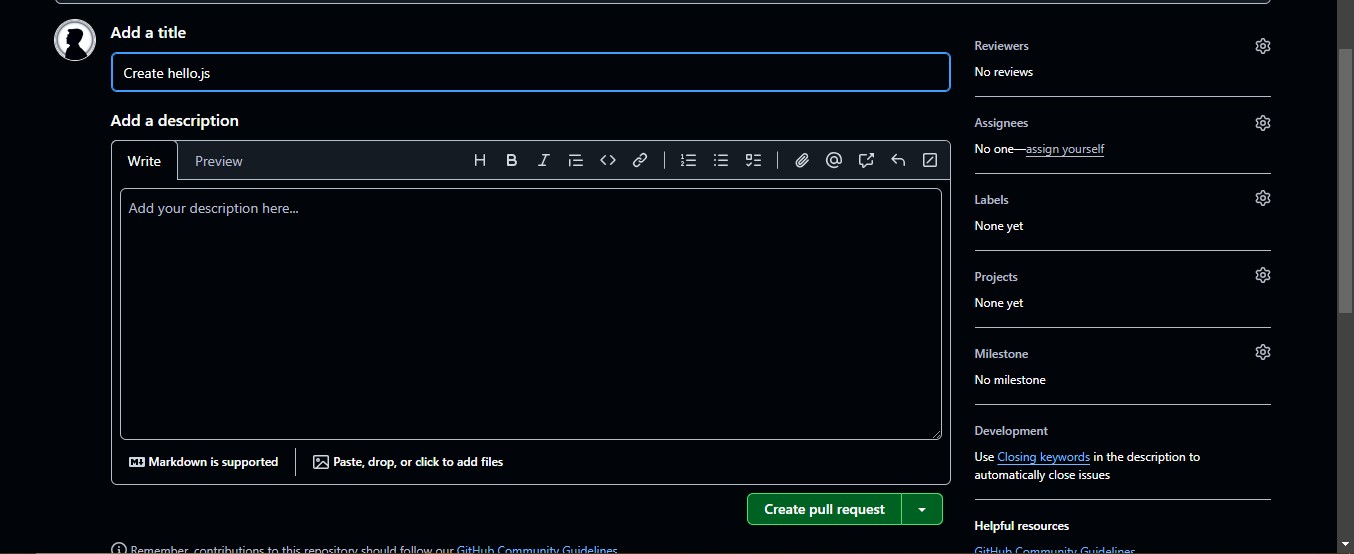
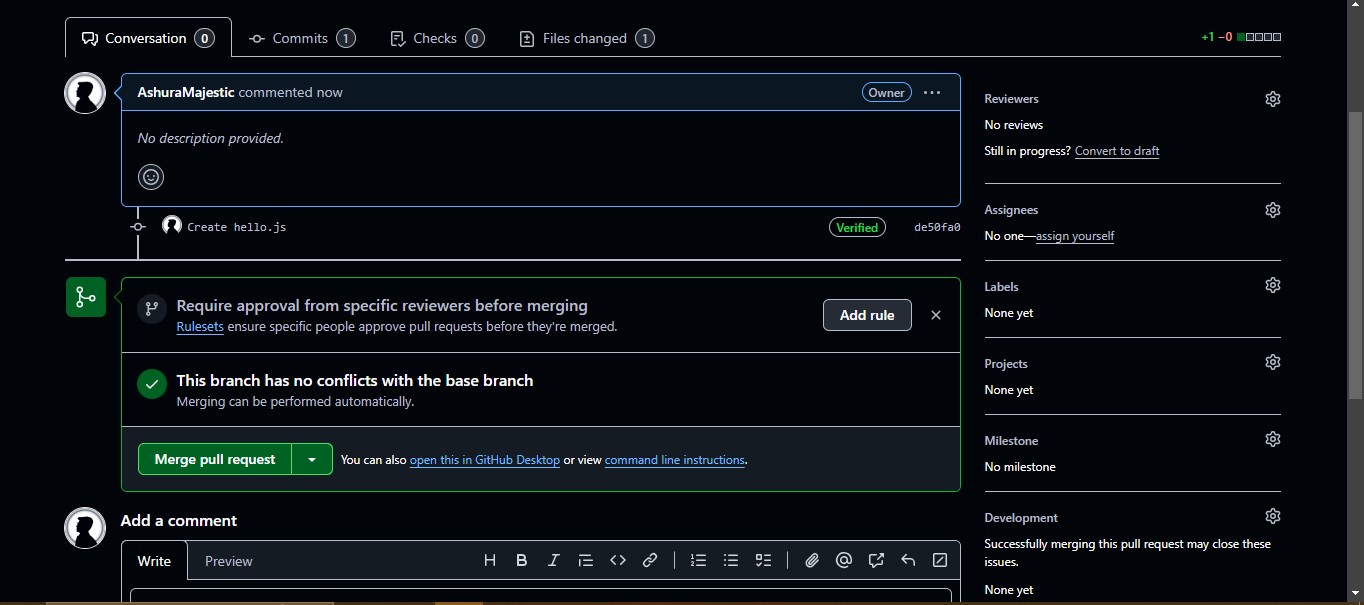
Accept or merge the Pull Request from your main repository.
Repeat steps 8 through 10 once more.
Congratulations, you’ve earned the Pull Shark badge!

Navigate to Your Repo
First, go to the repository you created when earning your previous badge.
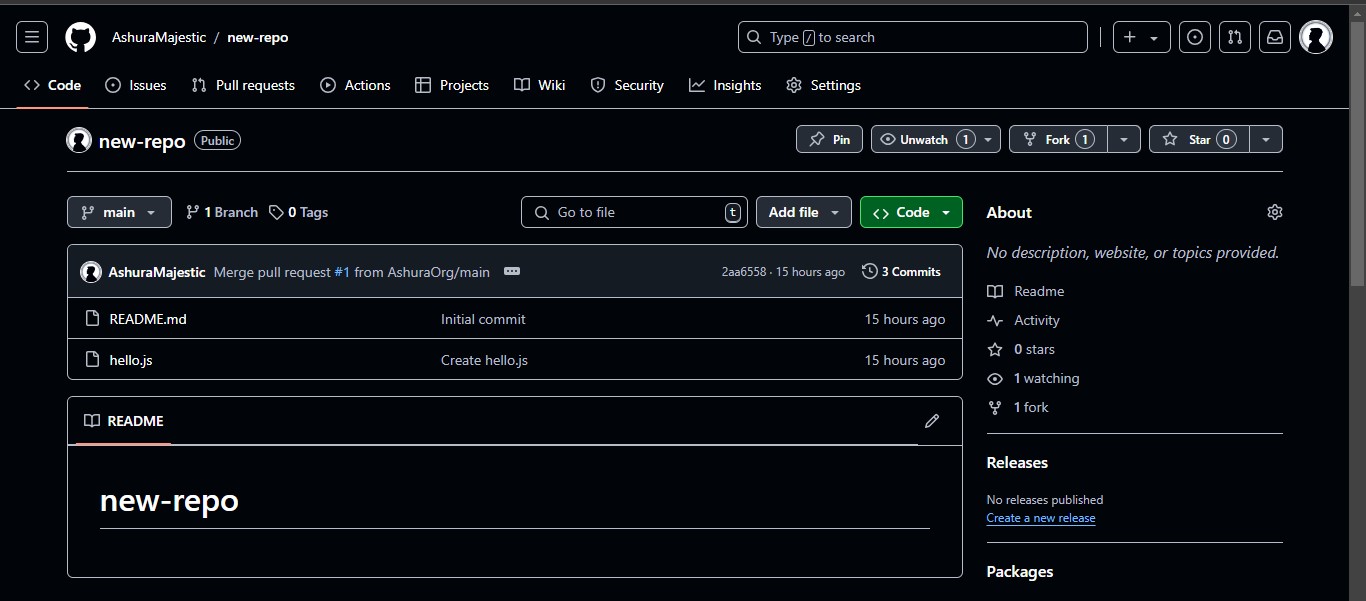
Go to Your Forked Repo
Now, navigate to your forked version of the repository.
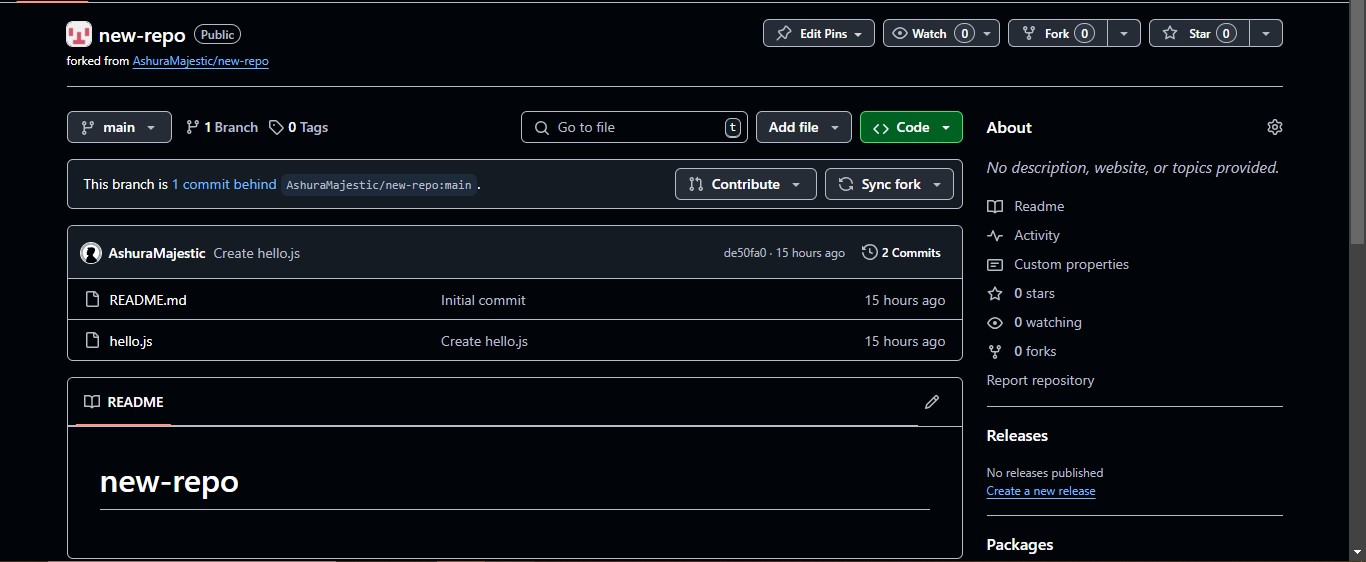
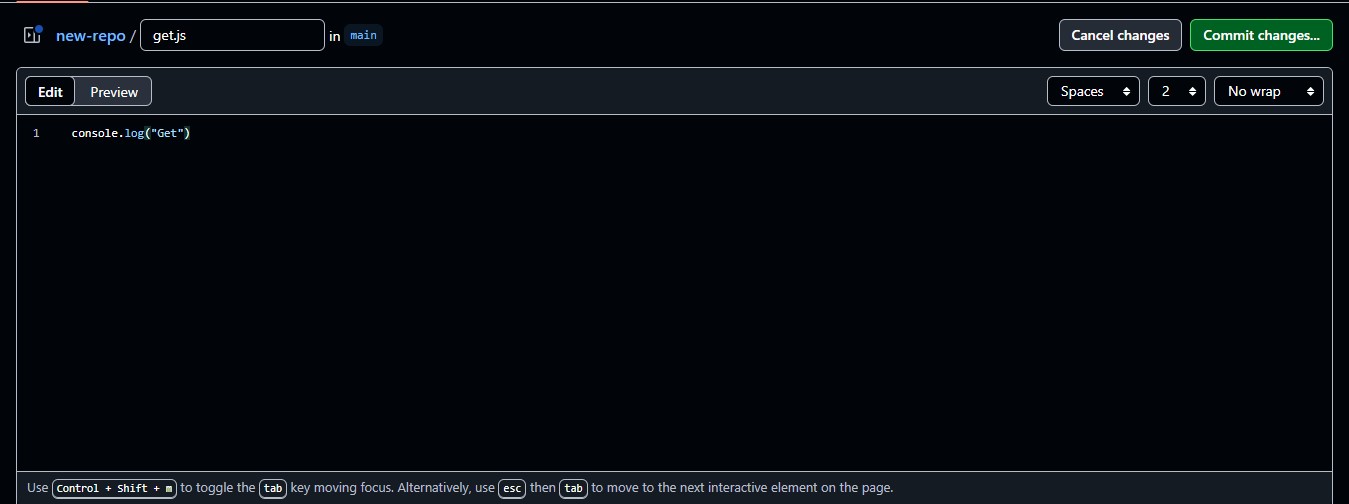
Add a New File
Create a new file in the forked repository as needed.
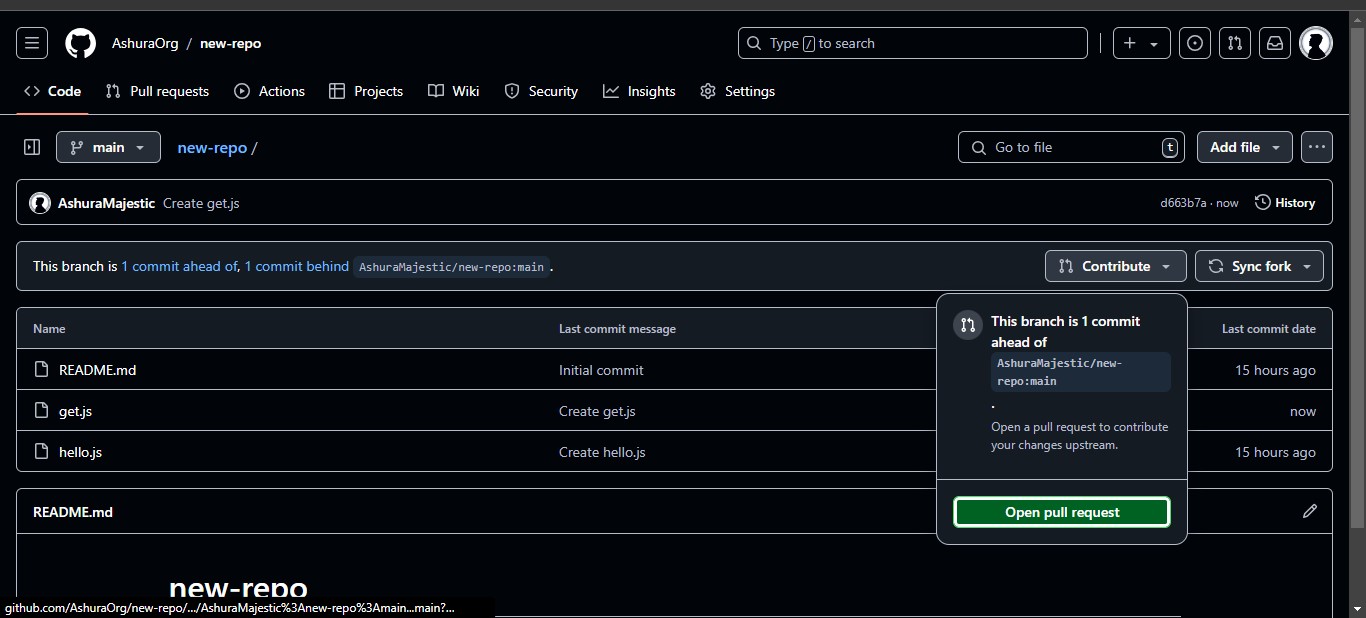
Open a Pull Request
Once you've made changes, open a pull request to merge them back into the main repository.
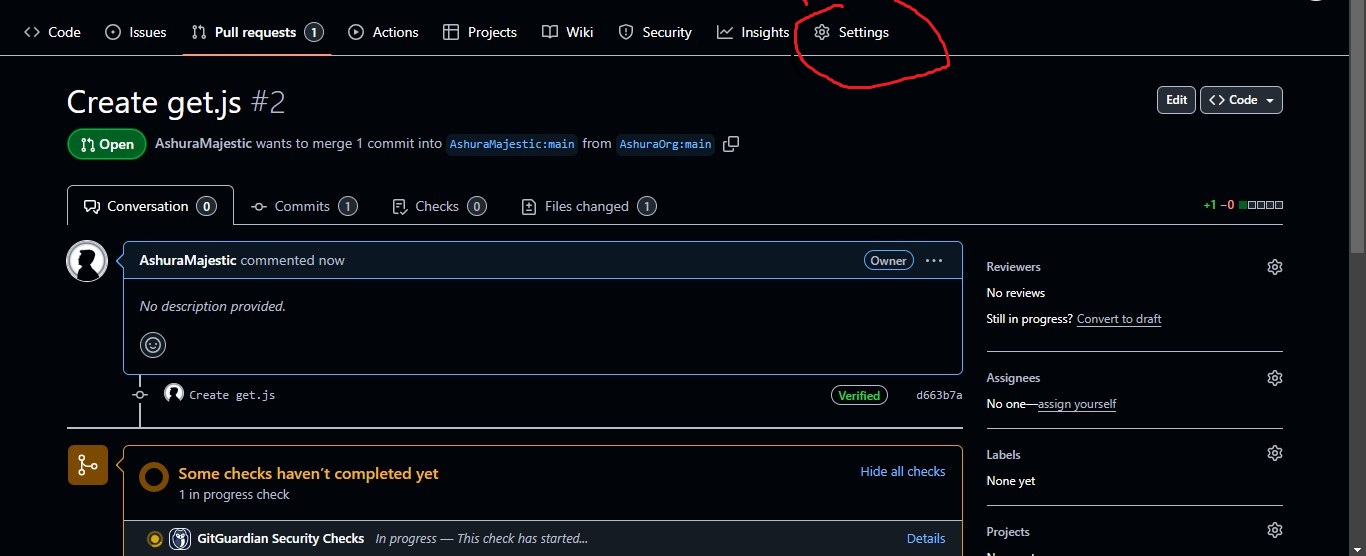
Go to Repository Settings
Now, navigate to the settings of the repository.
Click on Collaborators
In the settings, click on the "Collaborators" section.
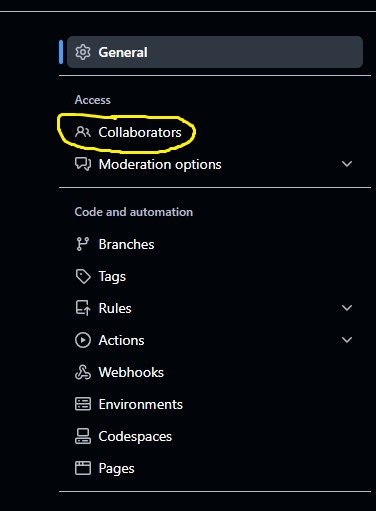
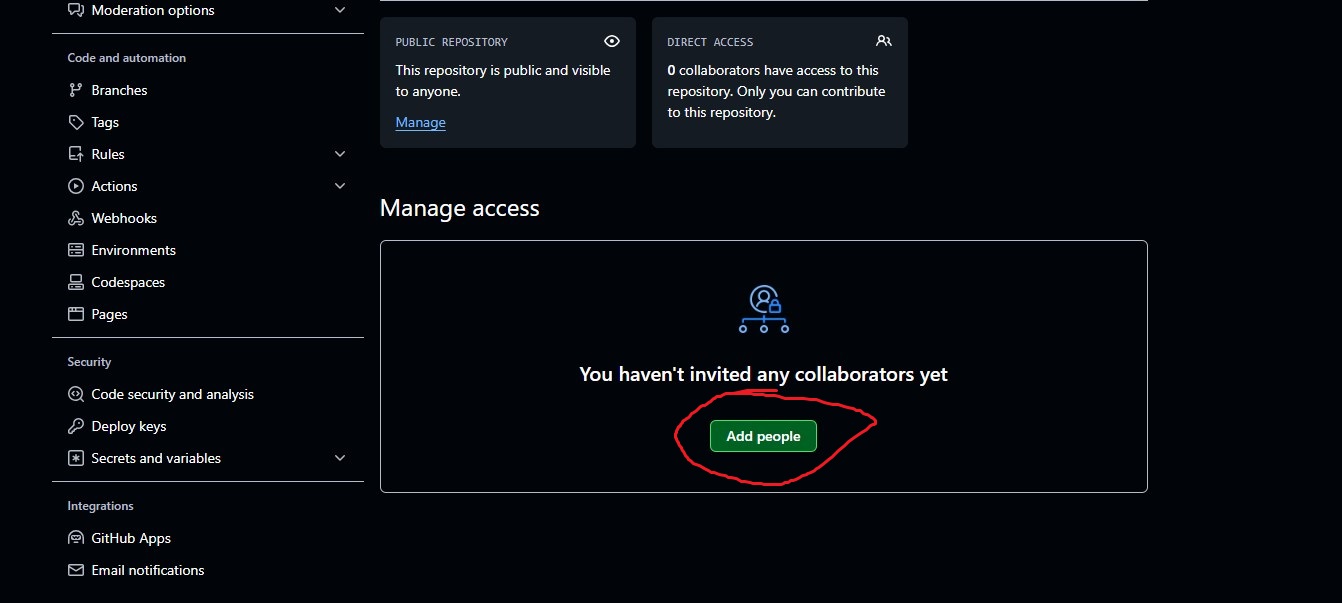
Add a Collaborator
Add a collaborator, such as a friend, since you can't add yourself.
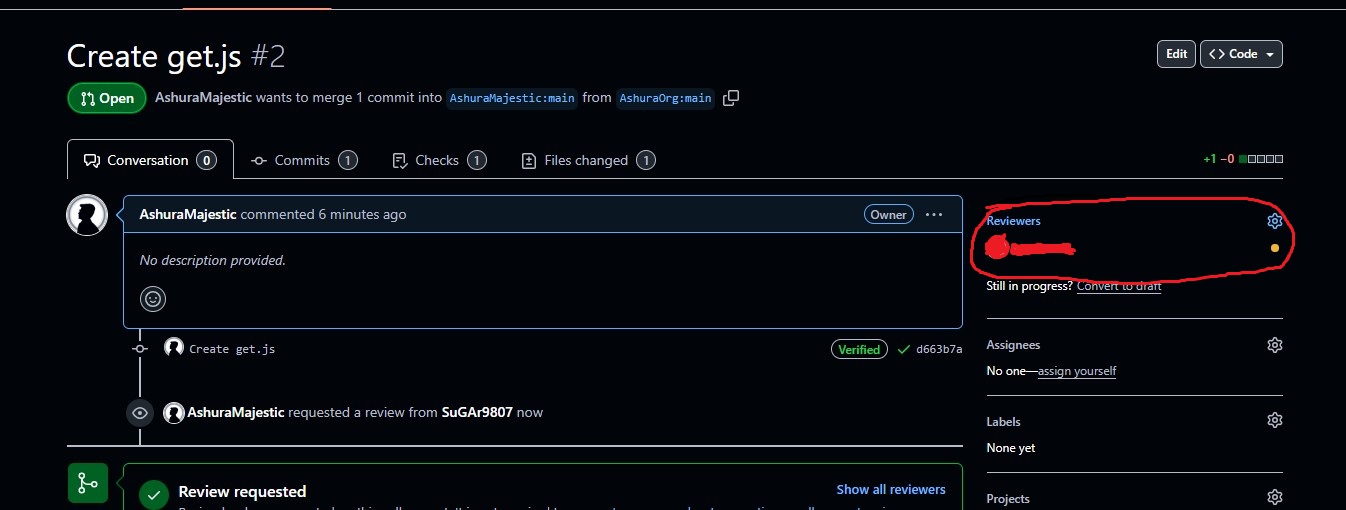
Add the Collaborator as a Reviewer
Go back to your pull request, and from the left corner, assign the collaborator you added as a reviewer.
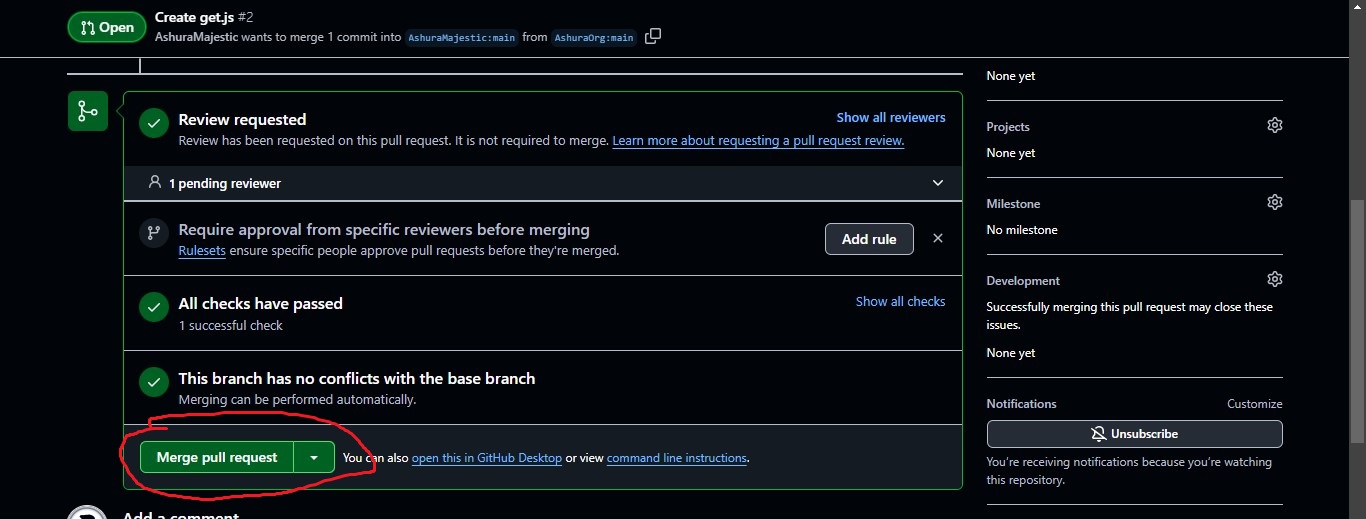
Merge the Pull Request
Finally, merge your pull request using the owner's account.
Congratulations!
You've successfully earned your YOLO badge!

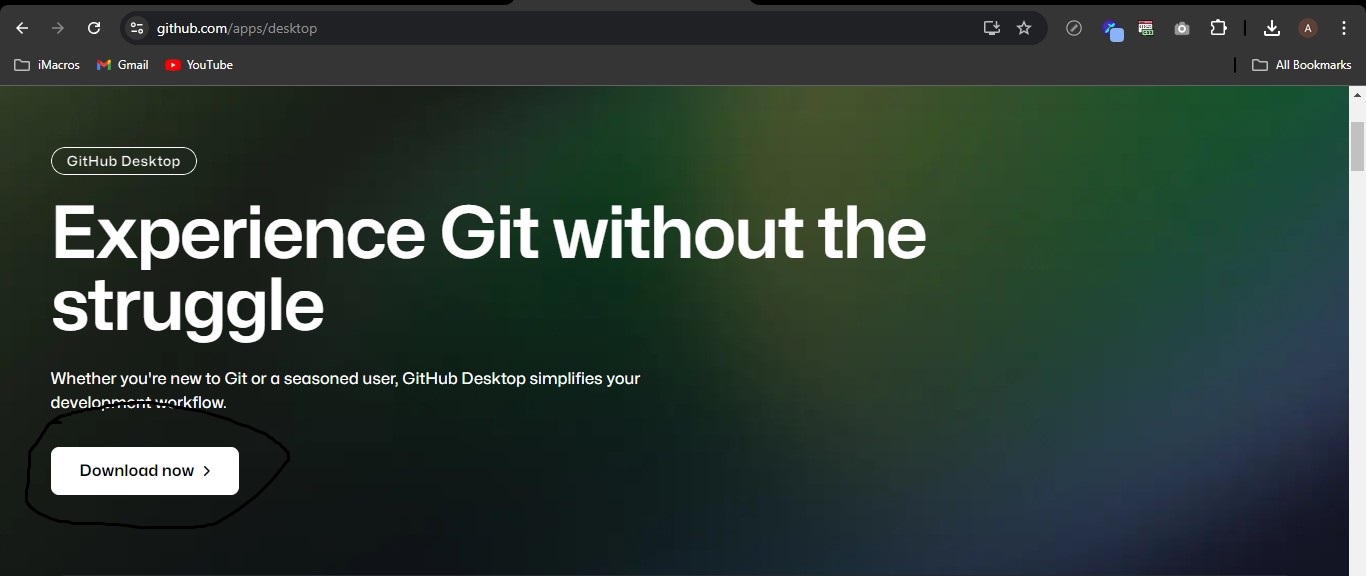
Download GitHub Desktop
First, download GitHub Desktop using the link below.
Download GitHub Desktop
Open GitHub Desktop and sign in
You will see a prompt to sign in.
Open the repository you created for other badges
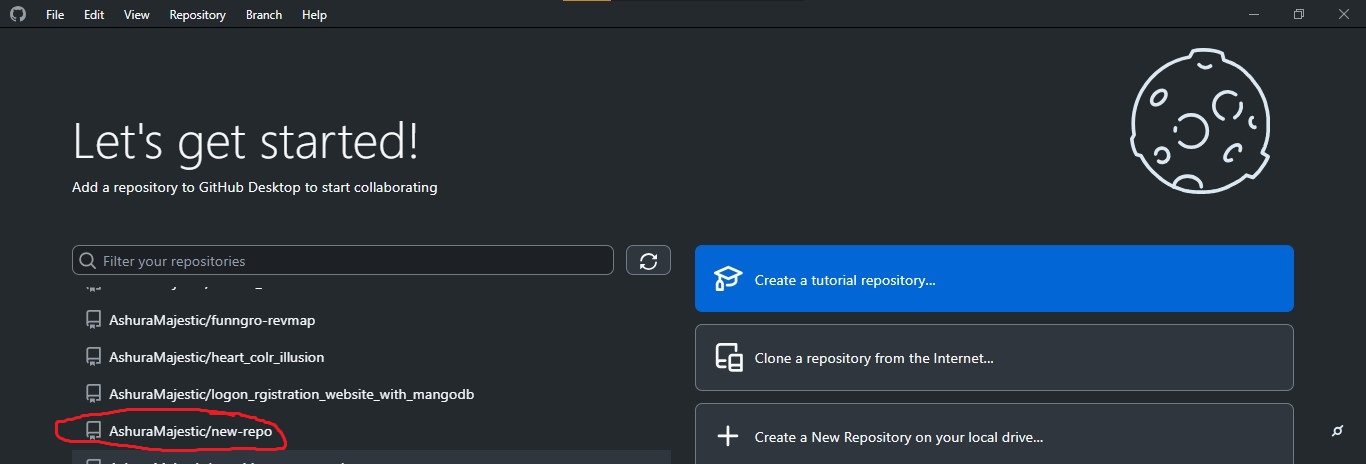
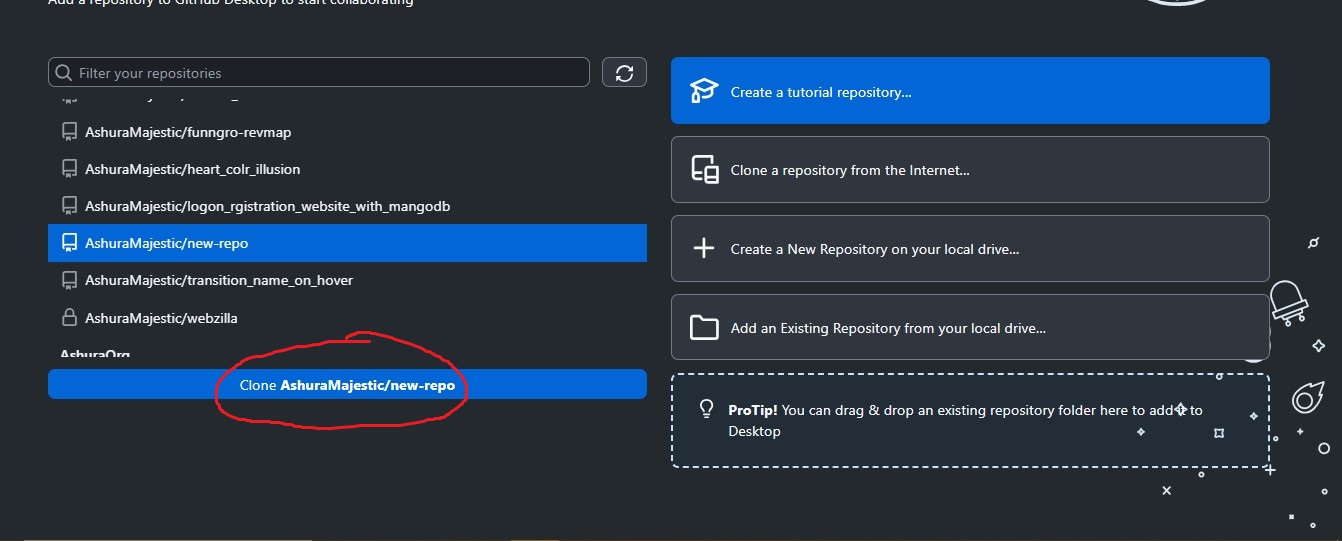
Clone the repository and wait for it to open
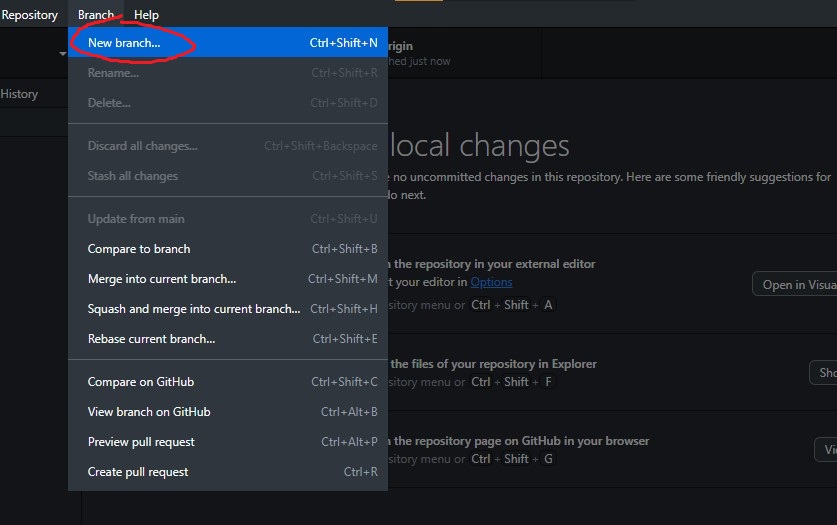
Click on the Branch menu in the taskbar
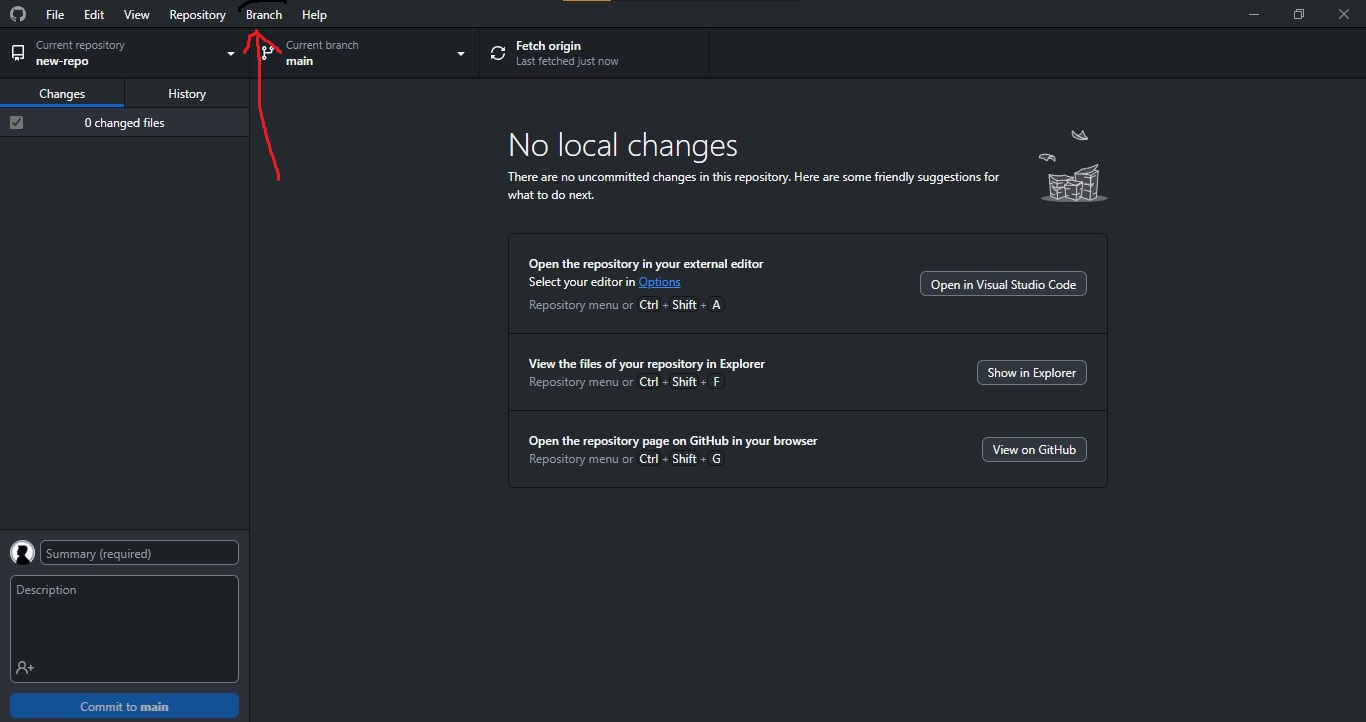
Create a new branch
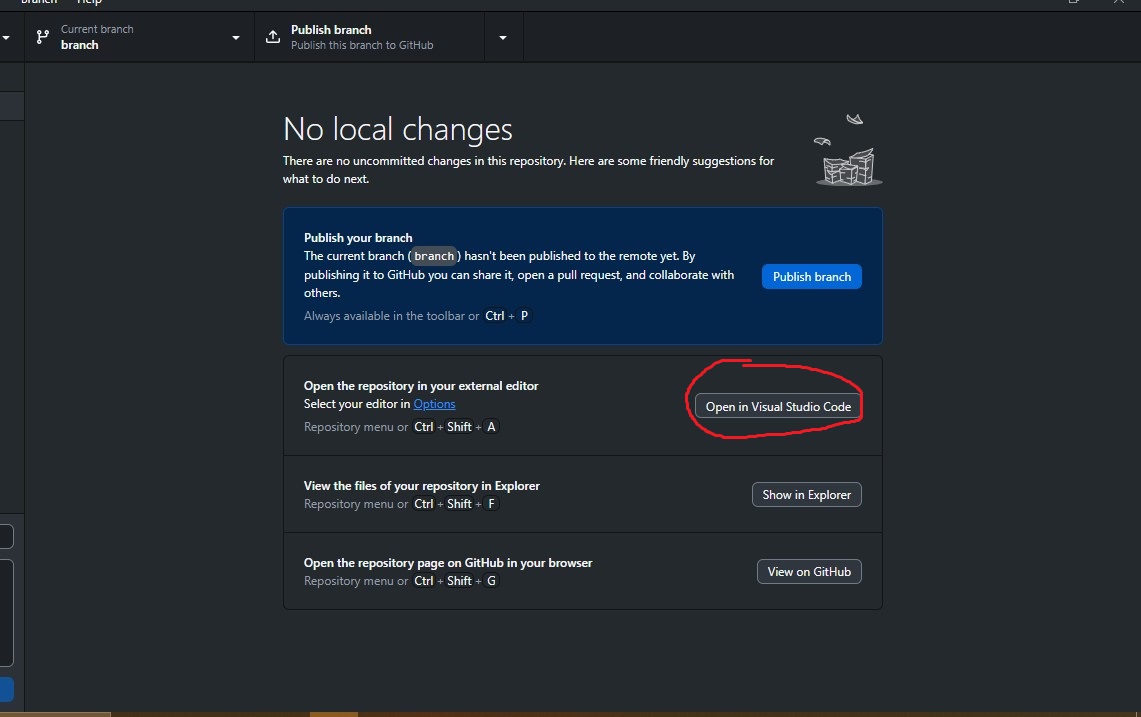
Click on "Open in VS Code"
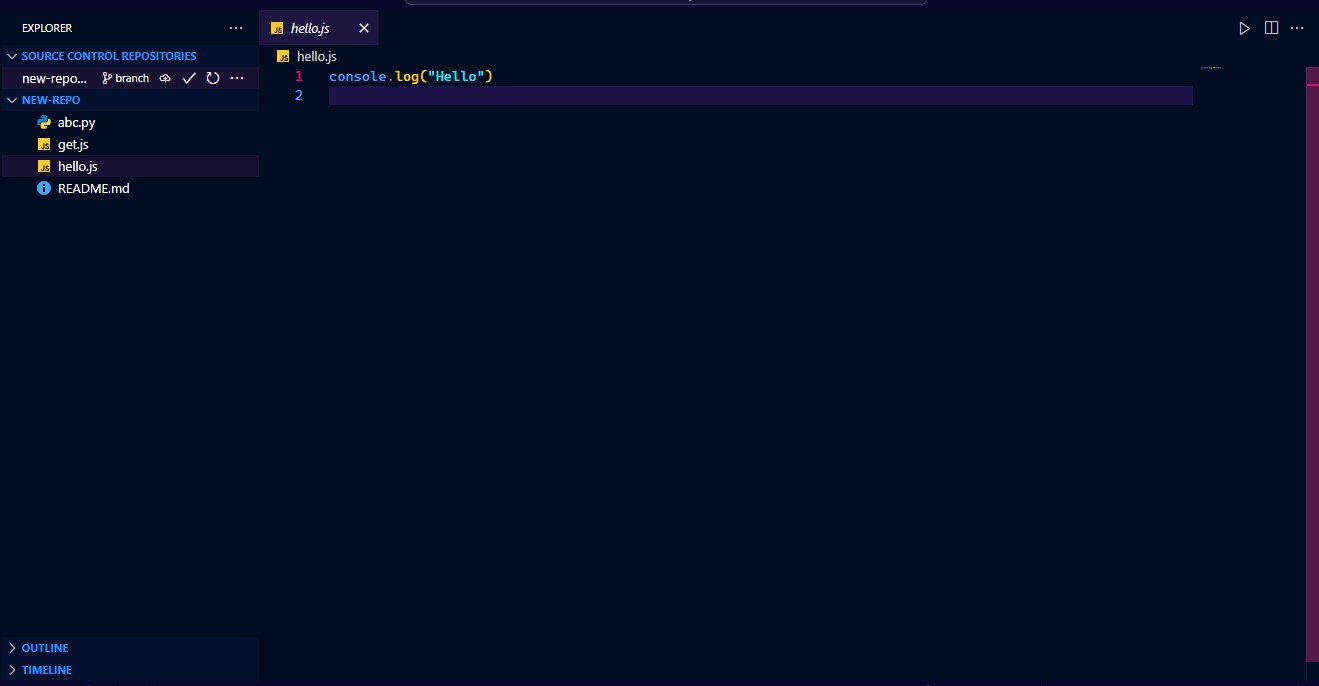
Make changes to any file you want and save it
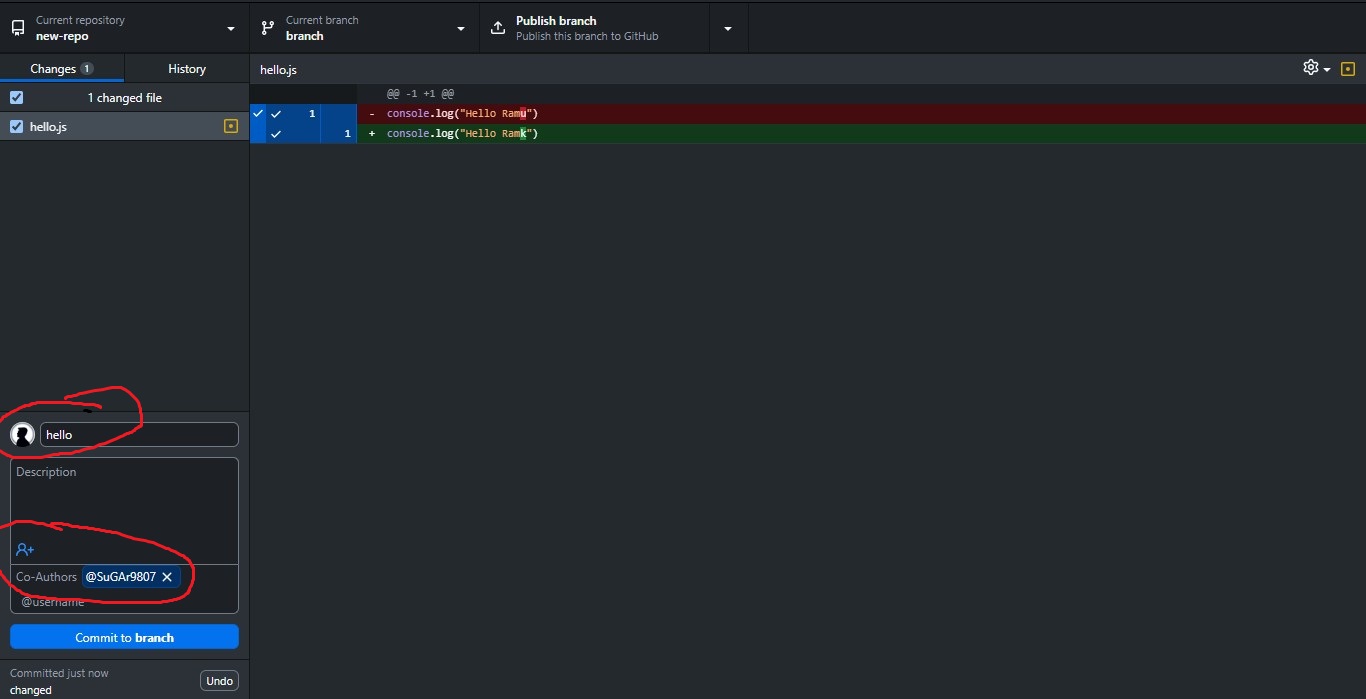
Go back to GitHub Desktop and commit the changes
Don't forget to add a collaborator, which is the most important part.
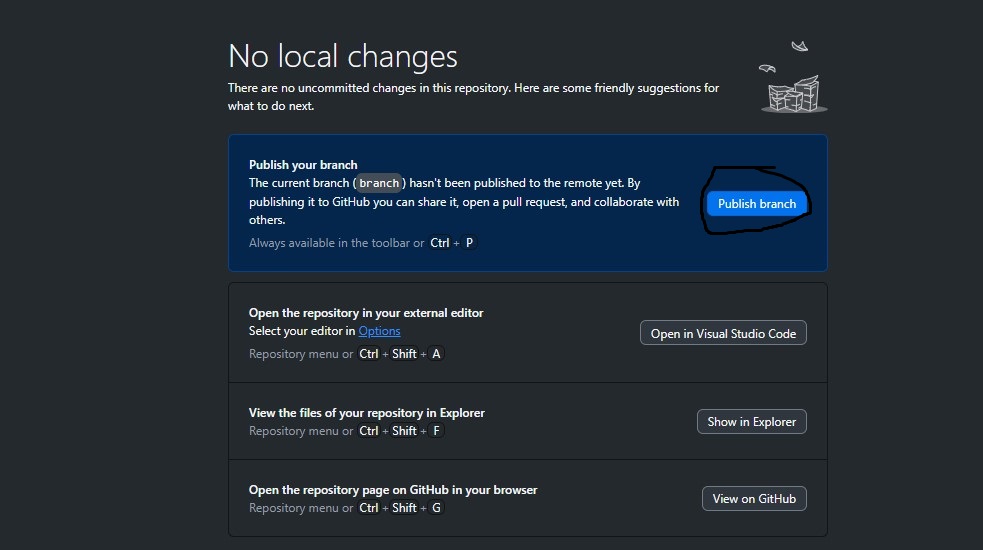
Publish the branch
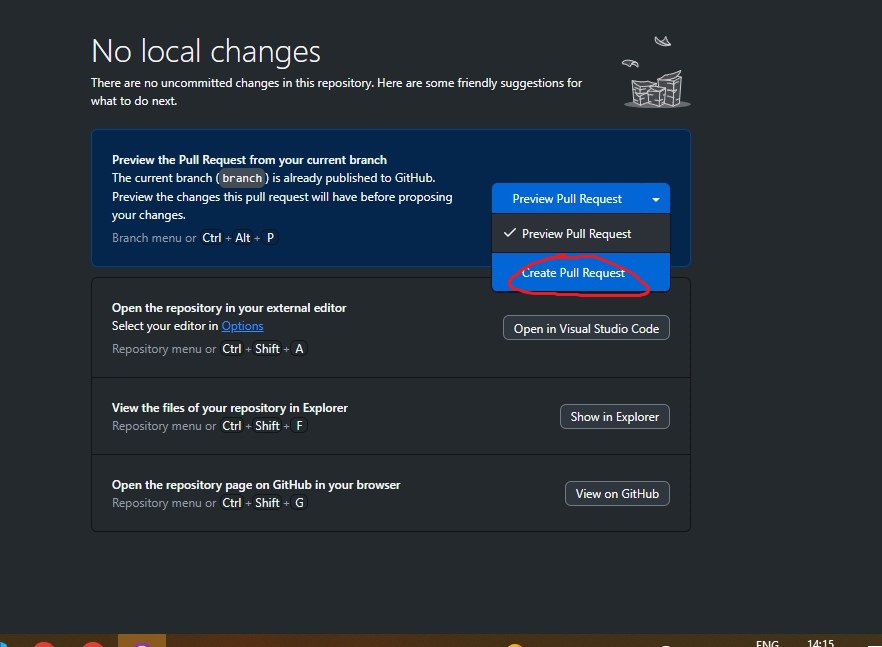
Create a pull request
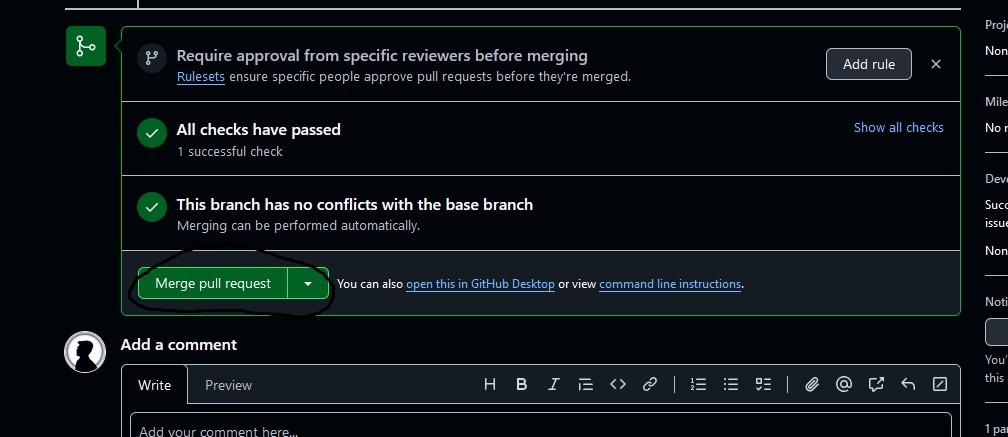
Merge the pull request
Congratulations!
You've successfully earned your Pair Extraordinary badge!
Please Check Daily, I will Add more Badges Info here and if the need is increased i will also make a subscribe letter which will send automatic messages.